OSCER and BASH, BASH and OSCER
Setting the Stage
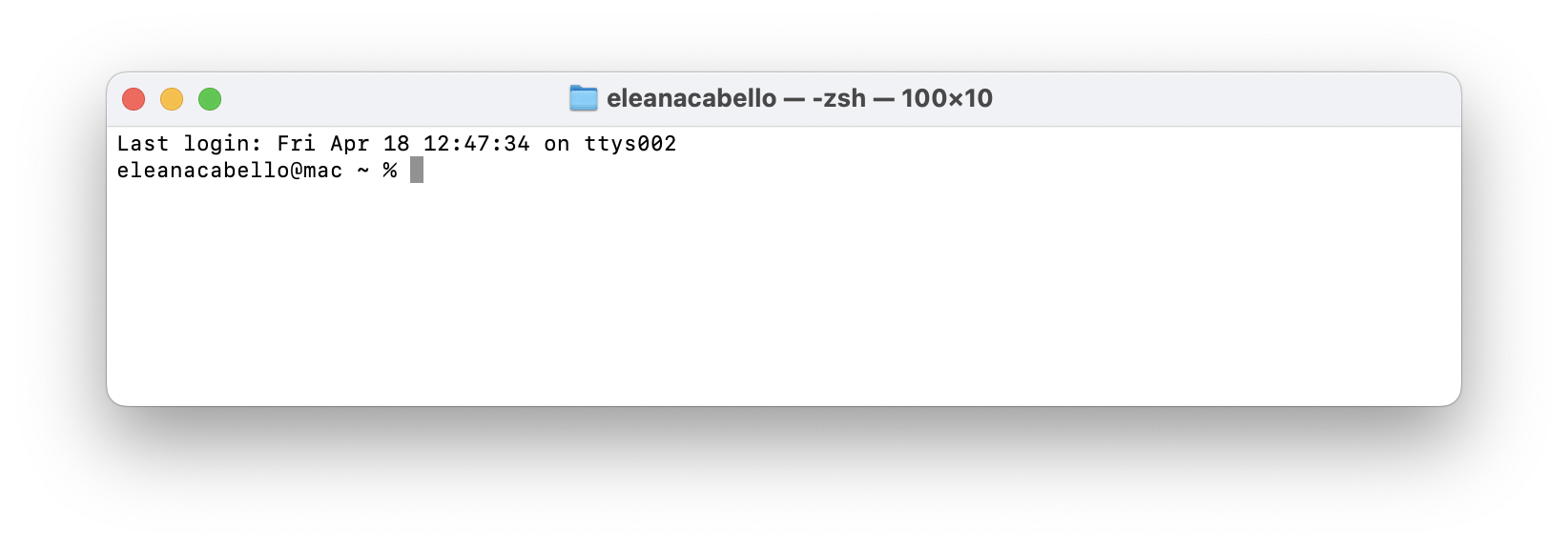
- Terminal - A text-based user interface that allows users to interact with a computer by typing commands
- Directory - A folder location in your computer
- Working Directory - The current directory a user is in
- Path - Directions to a folder or file
- Command - BASH command to accomplish a task i.e. creating file, removing file, etc.
- Command Flag - Modifications to a command to consider
Logging into OSCER Guest Account
Good news! There is nothing you need to do to setup an account. A guest account has already been made for you by us for FREE!
Gather you log in information, username and password.
Find the terminal on your computer.
Type the following command to access you OSCER account
ssh USERNAME@sooner.oscer.ou.edu #Replace USERNAME with your guest usernameIt will ask for your password, start typing it. It will not appear on your screen do not be alarmed this is normal. Just make sure to enter it correctly then hit enter.
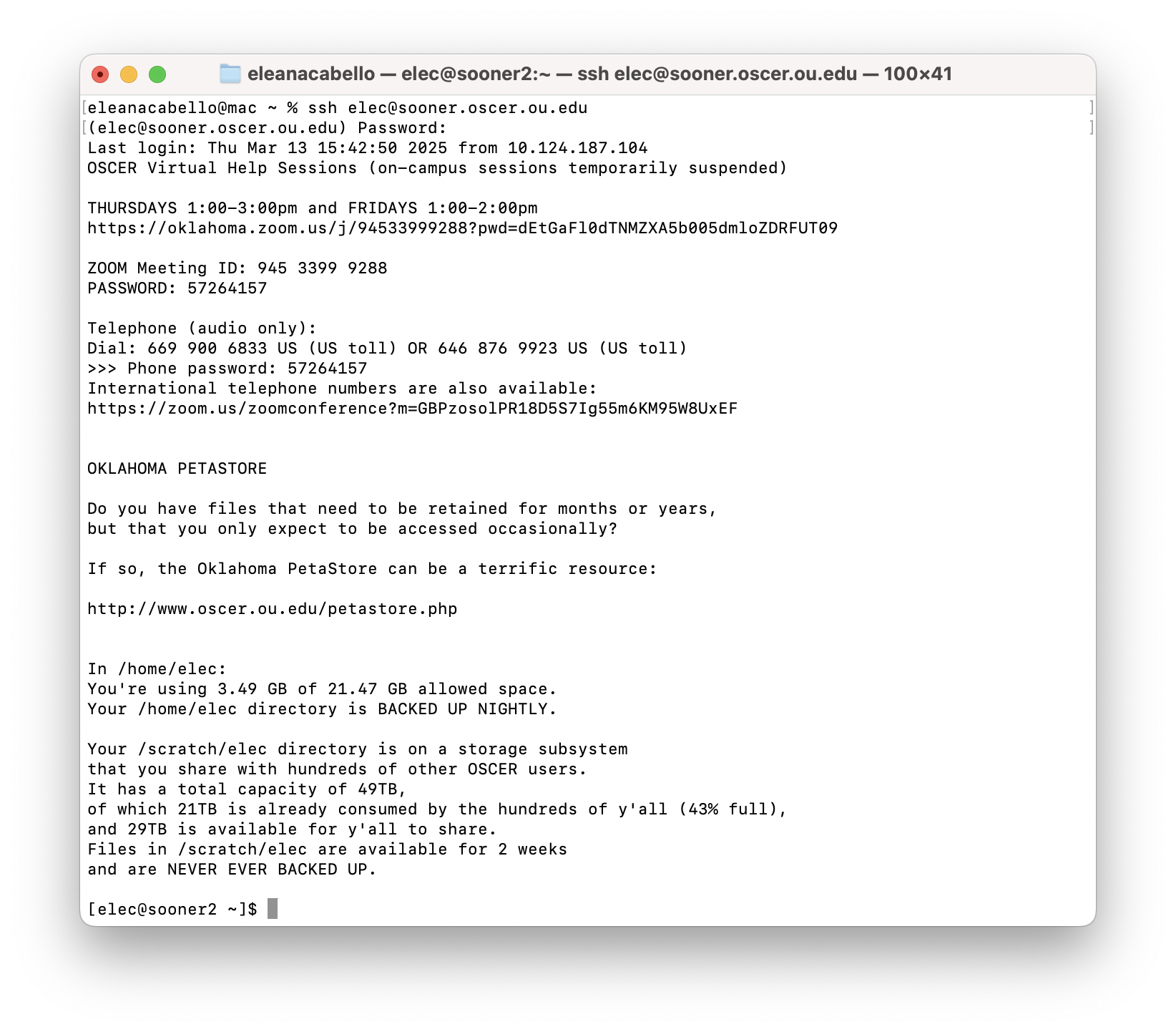
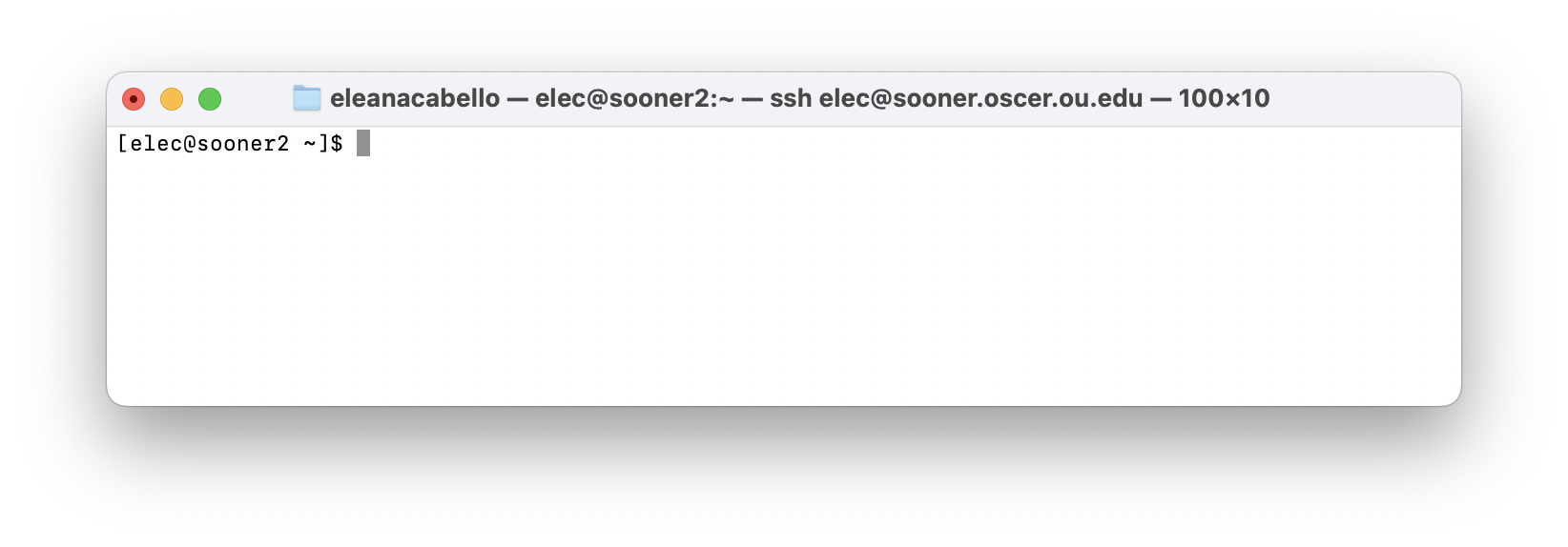
You’ve logged into your account!
Working on OSCER’s HPC System
Your computer is set up in a way where everything is together. Files, programs, and hardware are physically put into one place whether it be a tower or laptop. These system also typically use graphic user interfaces (GUI) like a window for Word or web-based applications. In this course we will primarily not be using these methods of communication with your computer. Instead we will be using things like the terminal, progrmaming scripts, and simple text editors to complete computational tasks.
The OU Supercomputing Center for Education and Research (OSCER) provides the OU, OUHS, and other Oklahoma institutions with High Performance Computing (HPC) infrastructure.
HPC system allow for multiple jobs to be run on several processors in a multi-processor enviroment. This is also known as parallel processing. A simple way to put it, it allows for multiple people to submit jobs/processes at the same time. It also means you can submit several jobs at a time and not have to wait for the “computer” to free up after each task.
Why do we need parallel processing? Think about it as a queue you are in, waiting to submit your job to do on a computer. Your job takes about 5 hours to complete. The person infront of you takes about equal or more and so does the next person infront of them. Whether you are using a computationally heavy program or just have hundreds of samples to process Without parellel processing you will have to wait there for days as one by one gets done in front of you. HPC parallel processing allows for multiple queues for computationally heavy jobs to get done in a faster amount of time.
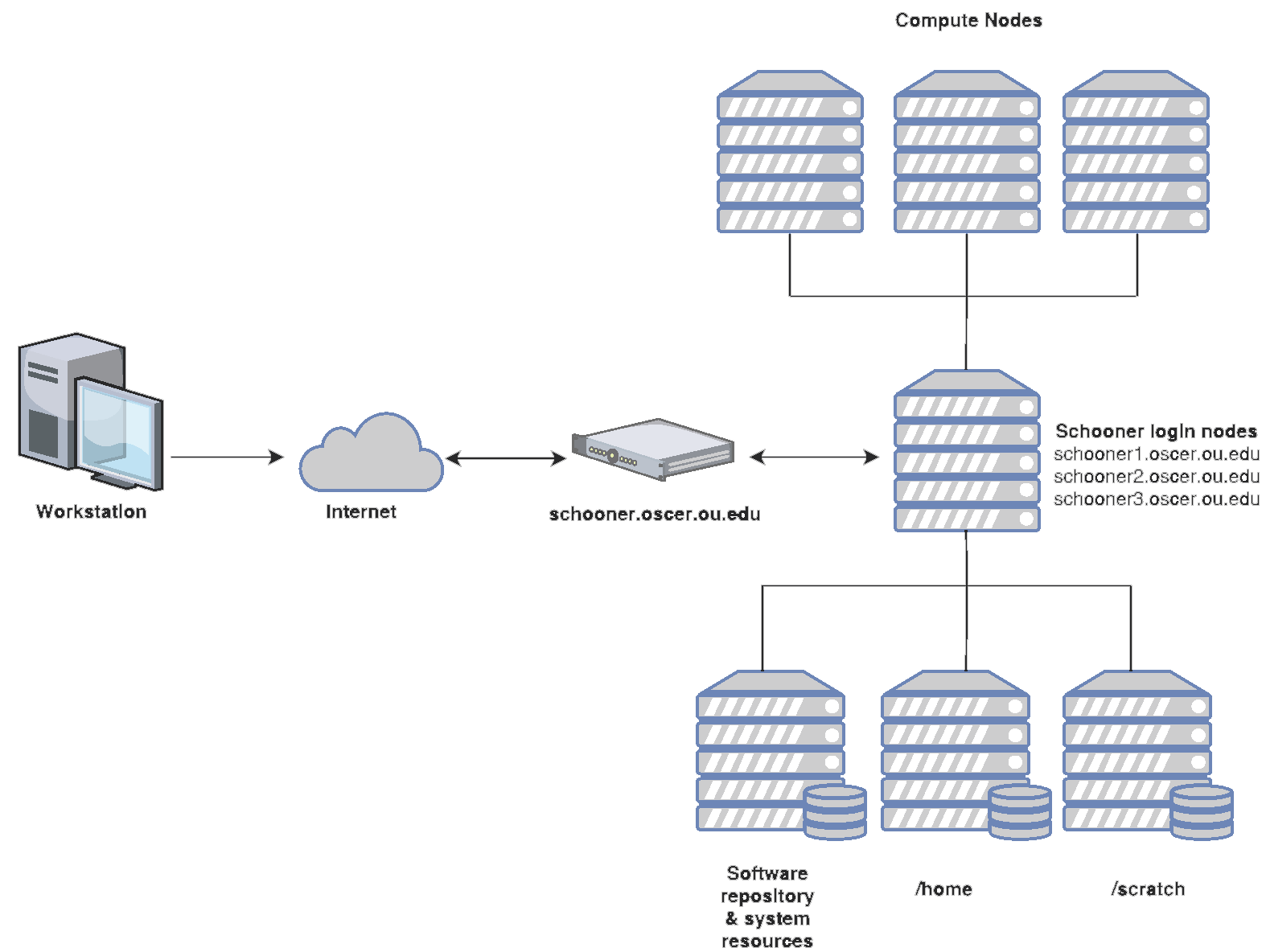
The figure above shows the overview of OSCER’s HPC structure. In a traditional computer you files system is very much merged with your processing system. Since an HPC system has hundreds even thousands of users, this is not possible to do with an HPC and would likely defeat its purpose. Instead you file system “Home” is seperate from your processing system “Compute Nodes” in this structure. Programs are also seperated from your “Home”.
BASH Programming
The following commands will help you navigate through your OSCER account and submit jobs.
Creating, Moving, and Deleting Directories
mkdir SOME_DIR # Create directoryrmdir SOME_DIR # Remove Directory
rm -r SOME_DIR # Remove Directorymv ONE_DIR TWO_DIR # Move directory to new directory Creating, Deleting, Copying, and Moving Files
touch SOME_FILE.txt                   # Create new file
touch SOME_FILE.txt SOME_FILE.txt     # Create several new files
rm foo.txt # Remove filecp SOME_FILE.txt SOME_FILE.txt # Copy file to new directory
mv SOME_FILE.txt SOME_FILE.txt # Move file to new directoryPiping
CMD1 SOME_FILE.txt | CMD2 # Structurels SOME_DIR | grep "R1" # ExampleStandard Output
echo "some string" # Print to screenCMD SOME_FILE.txt > NEW_FILE.txt # Overwrite file with output
CMD SOME_FILE.txt >> ADD_TO_EXISTING.txt # Take output and add output to existing content in fileCMD SOME_FILE.txt 1> stdout.txt # Redirect the standard output to a file
CMD SOME_FILE.txt 2> stderror.txt # Redirect the standard error output to a fileFile Editing
nano                    # Opens text editor to create new file
nano file.txt            # Opens file in text editor
Pattern Searching
grep "some-string" SOME_FILE.txt # Grabs lines in file that contain the string patternBatch Scripting and Programs on OSCER
Working on an HPC means we have to communicate with it using its language which is Bash and Bash scripting.
To use a bioinformatics program we will need to submit jobs through a Bash script. In a sense you will have to anticipate what will need to be done in this script. For example if you want to store your results in a seperate folder than you are working in you will need to create that folder and set the path for those results. Below is an example of what each script will need at the beginning:
#!/bin/bash
#SBATCH --partition=ircfhp
#SBATCH --nodelist=c923
#SBATCH --container=el9hw
#SBATCH --nodes=1
#SBATCH --ntasks=1
#SBATCH --cpus-per-task=10
#SBATCH --mem=30G
#SBATCH --chdir=/ecabello
#SBATCH --output=qc_%A_%a_stdout.txt
#SBATCH --error=qc_%A_%a_stderr.txt
#SBATCH --mail-user=eleana-cabello@ouhsc.edu
#SBATCH --mail-type=ALL


#==============================================================================
# BASH Strict mode (i.e. "fail fast" to reduce hard-to-find bugs)
set -e          # EXIT the script if any command returns non-zero exit status.
set -E          # Make ERR trapping work inside functions too.
set -u          # Variables must be pre-defined before using them.
set -o pipefail # If a pipe fails, returns the error code for the failed pipe
                #  even if it isn't the last command in a series of pipes.
#==============================================================================

module load fastqc
module load multiqc